Getting started
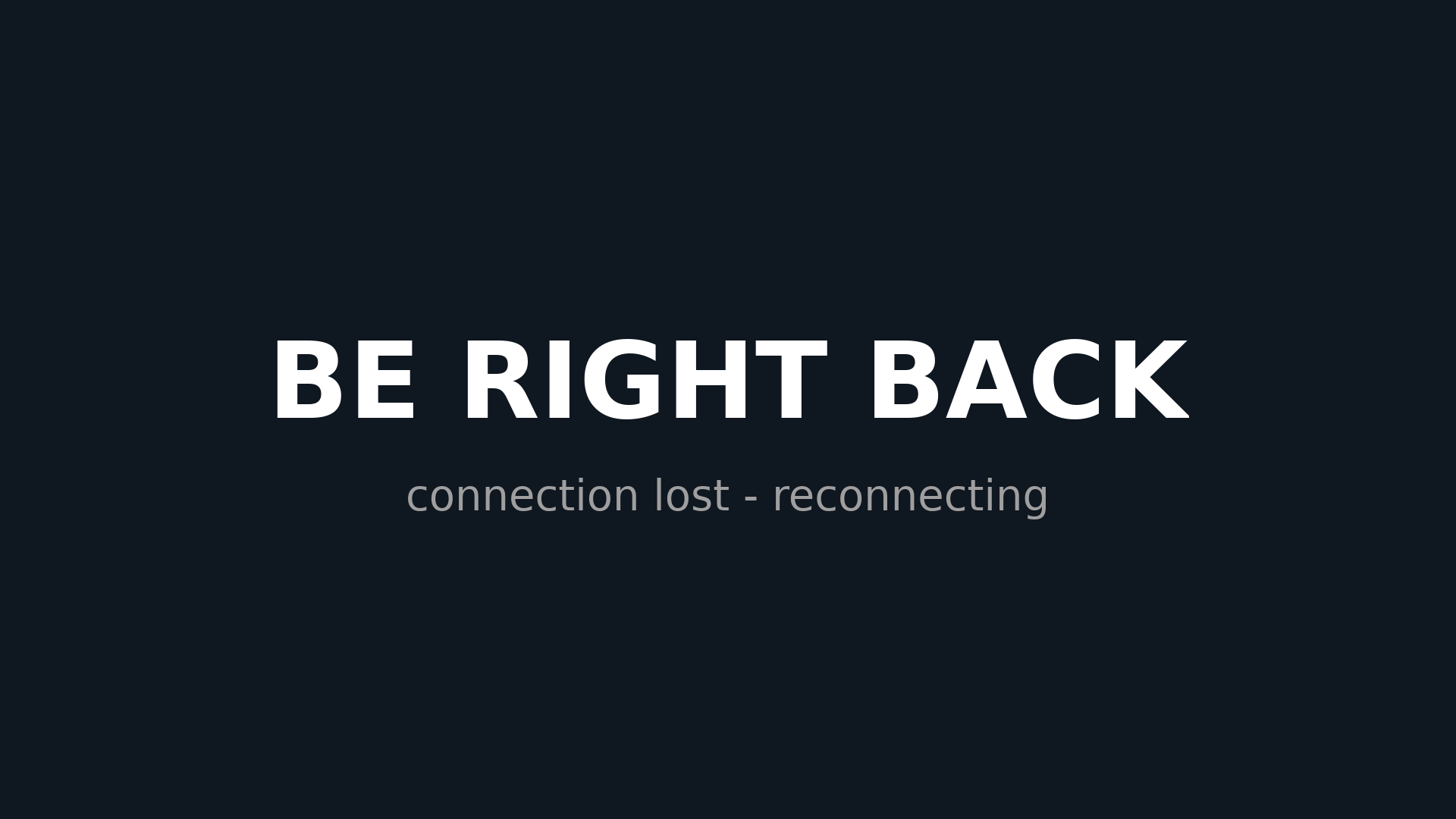
Add where you stream toPaste your Twitch, Kick or YouTube stream key under Destinations. Connect your phoneOpen your streaming app with the settings under Connect your phone and press Go Live. You're liveThat's it. If your connection drops, viewers see your BRB screen and your stream keeps going.
From your phoneTo platforms
Bitrate—
Connection—
Video—
Advanced details
Round trip—
Lost packets—
Keyframes—
Audio—
Video format—
Server CPU—
Controls
Stream looks or sounds off? Fix stream re-syncs it without interrupting your viewers.
Advanced
Hard refreshReconnects to Twitch/Kick/YouTube. Viewers see a 1–3 s blip. Use it if Fix didn't help.
Audio syncIf your audio is ahead/behind on stream, nudge it here.
0 ms
Destinations
Where your stream goes.
BRB screen
Shown to viewers whenever your connection drops. Image or short looping video.
Default screen
PNG/JPG or MP4 up to 30 MB. Video loops; its audio plays on stream. It's prepared on your server in the background (about 10 s).
Connect your phone or encoder
Point your streaming app at your server. Use H.264 video and AAC audio.
Scan with your phone camera to import.
Recommended app settings
- Video codec H.264 (not HEVC) · Audio AAC, 48 kHz
- Keyframe interval 1–2 s (faster recovery after drops)
- Bitrate: Twitch ≤ 6000 kbps, Kick/YouTube ≤ 8000 kbps (adaptive bitrate on)
- SRT latency in the app: 2000 ms